Edition note: This article was written for the original Voice Assistant Edition of Smart Home Cinema, where Alexa or Google Assistant sends commands to the Windows PC. References in this article to Alexa, Google Assistant, Google Home, voice assistants, or trigger delivery describe that original workflow. Smart Home Cinema now also offers a Local Voice Edition, which uses a PC microphone instead of a smart assistant. The core movie command structure remains part of Smart Home Cinema, but the voice input method depends on the edition.
How to Control Movies on PC Using Voice Commands
Watching movies on a Windows PC is easy.
Controlling them comfortably from across the room is the difficult part.
The moment your computer is connected to a TV, the experience changes.
Play becomes simple.
Pause becomes annoying.
Subtitles become manual work.
The next movie becomes another trip back to the keyboard.
That is exactly where voice control becomes useful.
Instead of reaching for a mouse or keyboard, you can simply speak the action you want:
- play the movie
- pause it
- rewind
- download subtitles
- start the next movie
In Smart Home Cinema – Voice Control, this idea is not limited to one or two commands.
The system is built around a complete voice-controlled movie workflow — from playback to subtitles to system-level actions — so that the viewing session can be managed without touching the computer directly.
If you want to understand what happens underneath that workflow, read The Hidden Layer Behind Voice-Controlled Movie Playback.
The system works with both major players: VLC and PotPlayer, with full voice control support
Why a Few Voice Commands Are Not Enough
Some systems offer only a few basic voice commands. Others can support much more — but only after manual setup and configuration.
In most cases, this means:
Play.
Pause.
Maybe stop.
That is not a full movie-control system.
A real hands-free setup needs more than isolated commands.
It needs a complete flow.
You should be able to:
- start playback
- navigate the movie timeline
- manage subtitles
- move to the next movie
- display guidance on screen
- control the viewing environment itself
That is the difference between a few isolated commands and a complete hands-free movie-control system.
It is not about triggering one or two actions — but about controlling the entire viewing experience from start to finish.
The other type of system addresses this limitation — but introduces a different problem.
In many setups, even if voice commands are technically possible, the user is still responsible for building the system.
That usually means:
- creating custom scripts
- linking commands manually
- configuring each action step by step
The result is often a partial solution that works only after additional effort.
Smart Home Cinema follows a different approach.
The entire command system is already built and configured.
There is no need to define commands, write scripts, or connect individual actions.
Once installed, the full command structure is immediately available as a complete workflow.
This is what allows the system to feel consistent and predictable, instead of something that requires ongoing setup or maintenance.
What Smart Home Cinema Was Designed to Solve
Smart Home Cinema – Voice Control was not designed as a media library, a streaming platform, or a cloud-based assistant layer.
It was designed to solve a very specific problem:
how to control local movies on a Windows PC, from a distance, with as little friction as possible.
That means:
- local playback instead of streaming dependency
- direct control instead of heavy interfaces
- automation instead of repeated manual actions
This same idea is explored in How to Watch Movies From Bed on a PC, in From Remote Controls to Voice, and in The First File Rule.
The full command list is where all of those ideas become practical.
The Full Voice Command List
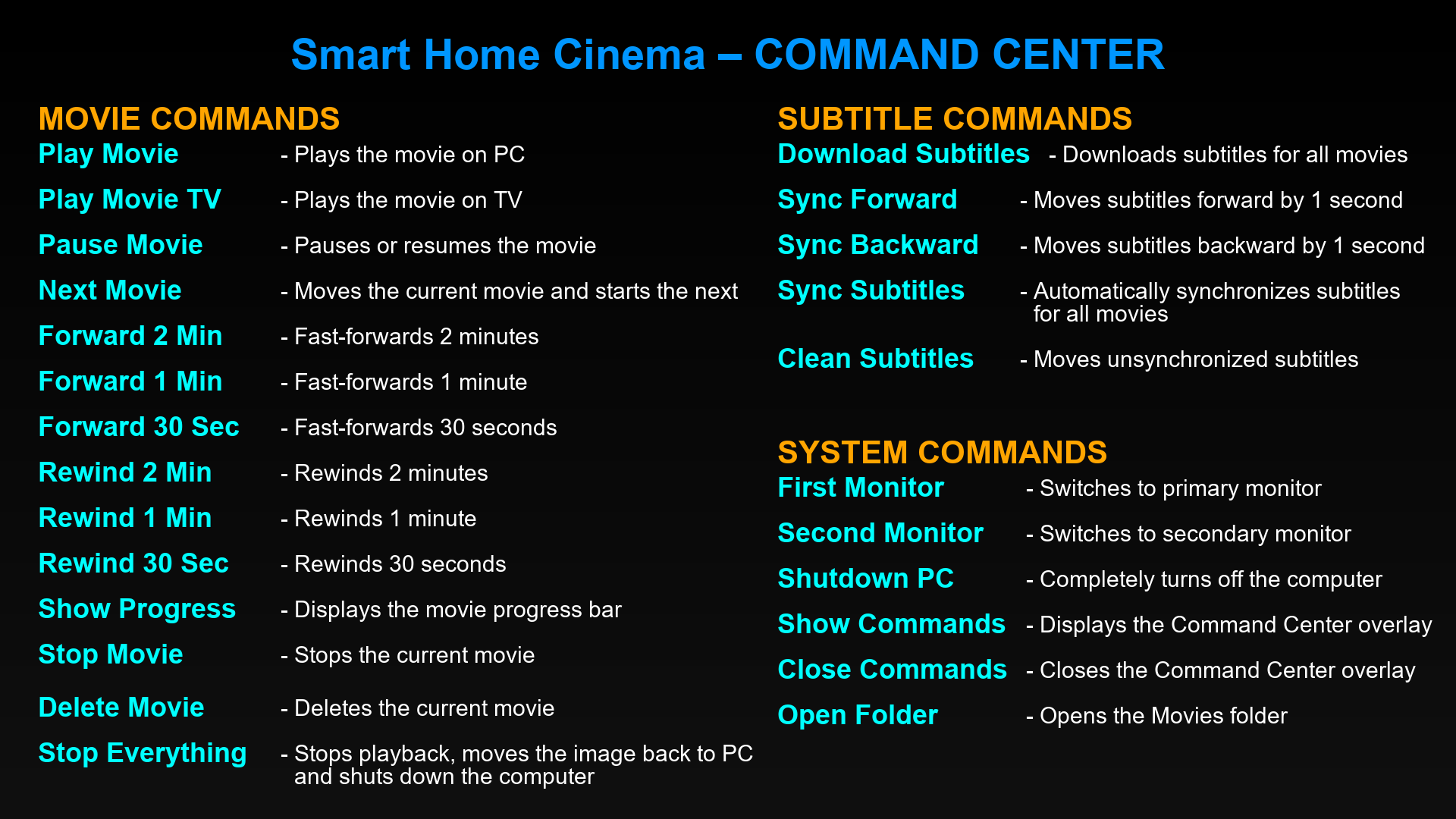
Below is the complete command structure currently supported by Smart Home Cinema.
These commands are designed to work as a continuous hands-free movie workflow, not as isolated one-off actions.
See how these commands work in real use
The commands are grouped into three main categories:
- movie playback commands
- subtitle commands
- system commands
Together, they form a full control layer for local movie watching on Windows.
Playback Commands
Playback commands handle the core viewing experience.
This is the part users interact with most often:
- Play Movie — plays the movie on the PC
- Play Movie TV — plays the movie on the TV
- Pause Movie — pauses or resumes playback
- Next Movie — moves the current movie and starts the next one
- Forward 2 Min — fast-forwards 2 minutes
- Forward 1 Min — fast-forwards 1 minute
- Forward 30 Sec — fast-forwards 30 seconds
- Rewind 2 Min — rewinds 2 minutes
- Rewind 1 Min — rewinds 1 minute
- Rewind 30 Sec — rewinds 30 seconds
- Show Progress — displays the movie progress bar
- Stop Movie — stops the current movie
- Delete Movie — deletes the current movie
- Stop Everything — stops playback, restores the image back to PC, and shuts down the computer
Two commands that define the experience:
Next Movie turns a passive moment into a seamless transition. When a movie ends, you don’t need to get up or wait through menus — the system closes the current movie, organizes it, and starts the next one automatically.
Stop Everything is designed for the end of the session. When it’s late and you’re ready to sleep, one command stops playback, restores the display, and shuts down the PC — completely hands-free.
This set of commands is what makes the system feel like a real hands-free playback environment, rather than a simple voice shortcut layered on top of a media player.
Download Subtitles for Entire Folders with One Command
Searching for subtitles and downloading them one by one is one of the most frustrating parts of watching movies locally.
In a typical setup, this means breaking the experience: opening a browser, searching for the correct subtitle, downloading it, renaming it, and placing it next to the video.
Repeating this for every movie quickly becomes unnecessary friction.
Smart Home Cinema removes this entire process from the workflow.
- Download Subtitles — downloads subtitles for all movies in the folder
- Sync Forward — moves subtitles forward by 1 second
- Sync Backward — moves subtitles backward by 1 second
- Sync Subtitles — automatically synchronizes subtitles for all movies
- Clean Subtitles — moves original subtitle files into a backup folder and keeps only the final synchronized subtitle next to each movie
What this changes in practice:
Download Subtitles is not just a helper action. It processes the entire movie folder automatically, retrieving and placing matching subtitles without any manual steps.
Instead of repeating the same process for every file, a single command prepares the entire folder in seconds.
Sync Subtitles extends this automation even further. Instead of adjusting timing manually for each movie, synchronization can be applied across all files in one step.
Fine adjustments are still available when needed, but the system removes the need for constant manual correction.
This turns subtitles from a separate manual task into a fully integrated part of the viewing experience.
In most environments, subtitles are still handled outside the playback flow.
Here, they become part of the same hands-free movie session — from download to synchronization to final cleanup.
Beyond Playback: Controlling the Entire Setup
A voice-controlled movie system is not only about the media player.
It is also about the environment around playback.
That is why Smart Home Cinema includes system-level commands that support the overall viewing setup.
- First Monitor — switches to the primary monitor
- Second Monitor — switches to the secondary monitor
- Shutdown PC — completely turns off the computer
- Show Commands — displays the Command Center overlay on screen
- Close Commands — closes the Command Center overlay
- Open Folder — opens the Movies folder
How the Command Center is used in practice:
When you're watching a movie and can’t remember a command, you don’t need to interrupt the experience or reach for a keyboard.
A simple voice command displays the Command Center on screen, showing all available commands directly on the TV.
You can quickly check what you need, close the overlay, and continue watching — all without leaving the hands-free workflow.
This allows the system to be learned naturally over time, without needing to memorize every command from the start.
These commands matter because a real-world movie session involves more than just play and pause.
Users may need to switch screens, verify the command list, access the movie folder, or close the system down at the end of the session.
Why the Command List Works as a Complete Workflow
The real strength of the system is not the number of commands by itself.
It is the way those commands connect.
A full session can follow a natural sequence:
- show the commands if needed
- download subtitles
- sync them if necessary
- play the movie
- rewind or fast-forward while watching
- display progress
- move to the next movie
- stop everything at the end
That is what makes the system practical.
It does not simply add voice input to one player action.
It supports an entire start-to-finish viewing flow.
This is not a partial setup.
All commands are already configured and ready to use.
You do not need to build or connect anything manually.
Not Just a Tool, but a Complete System
It is easy to think about voice control as a simple feature.
A command that triggers play.
A command that pauses a movie.
In that sense, many solutions behave like tools.
They can perform isolated actions, but they do not define the overall experience.
Smart Home Cinema takes a different approach.
Instead of adding voice commands on top of a player, it builds a complete system around how local movies are watched.
Playback, subtitles, navigation, and system actions are all part of the same structure.
This is why the command list is not just a feature list.
It is a reflection of a system designed to handle the entire movie experience from start to finish.
Not a collection of shortcuts, but a consistent way to control local playback without interruption.
Works the Same with Alexa and Google Home
One important point is that the command logic itself remains consistent.
The same commands can be used through:
- Amazon Alexa
- Google Assistant / Google Home
The assistant handles the spoken phrase.
The trigger is forwarded to the Windows PC.
And Smart Home Cinema executes the requested local action.
That means the core experience stays the same: the command list is stable, the playback remains local, and the user does not need to learn two different systems.
More Than a Command List
On the surface, this may look like a list of commands.
But in practice, it represents something larger.
It represents a shift away from:
- manual keyboard interaction
- repeated mouse use
- constant interruption during playback
And toward a more natural way of controlling local movies.
That is why the command list matters.
It shows that Smart Home Cinema is not limited to a single gimmick or one isolated automation.
It is a structured system for controlling movies, subtitles, and playback-related actions through voice.
Final Thoughts
If you are trying to control movies on a PC using voice commands, the real question is not whether one or two actions can be triggered by speech.
The real question is whether the entire viewing experience can be controlled in a way that feels complete, local, and practical.
That is exactly what this command list demonstrates.
Smart Home Cinema – Voice Control brings together playback commands, subtitle commands, and system commands into one continuous workflow.
Not just voice-triggered playback.
But a full hands-free movie-control environment for local Windows setups.
And the most important part:
you don’t need to build any of this yourself.
The entire command system is already configured and ready to use.
FAQ
Do I need to configure the commands manually?
No. All commands are pre-configured and ready to use after installation.
Does this work offline?
Yes. All playback and control logic runs locally on your PC.
Which players are supported?
VLC and PotPlayer are fully supported.
Can I download subtitles for multiple movies at once?
Yes. A single voice command can automatically download subtitles for all movies in your folder in just a few seconds.
What if I forget a command?
You can open the Command Center on screen at any time using a voice command, check the available commands, and continue your movie without interruption.