
Why Manual Subtitle Downloading Becomes Frustrating
Downloading subtitles manually is one of those tasks that feels simple — until you have to repeat it for every movie.
Open a browser. Log into OpenSubtitles. Search for the correct release. Download the file. Extract it. Rename it. Move it next to the video.
Do that once — fine. Do that five times — annoying. Do that every week — unnecessary friction.
Now imagine a folder with 10 episodes. The entire process must be repeated for each file.
For users watching from a distance — in a living room or bedroom setup — this completely breaks immersion. For users with reduced mobility, it becomes even more inconvenient.
There is a better way.
What Automatic Subtitle Downloading Actually Means
Automatic subtitle downloading is not about making the process slightly faster.
It removes the manual workflow entirely.
- No browser window
- No manual searching
- No release matching
- No manual file handling
- No folder navigation
Instead, the system scans your movie folder, queries the official OpenSubtitles API v2, and places matching subtitle files directly next to each video automatically.
Batch Subtitle Download for Entire Folders
One of the biggest advantages of automation is batch processing.
- 1 movie → 1 subtitle downloaded
- 5 movies → 5 subtitles downloaded
- 20 episodes → 20 subtitles downloaded
No extra clicks. No repetition.
The application loops through each supported video file and retrieves the top-ranked subtitle match from the OpenSubtitles API.
For users maintaining organized local libraries, this saves a significant amount of time.
Voice-Controlled Subtitle Downloads (Hands-Free)
Automation becomes even more powerful when combined with voice control.
A single voice command can trigger the entire batch process.
- The movie folder is scanned
- The OpenSubtitles API is queried
- Matching subtitles are downloaded
- Files are placed automatically
No keyboard. No mouse. No browser window.
This is especially valuable for bedroom setups, living room PCs connected to TVs, and accessibility-focused users who prefer fully hands-free control.
Works with VLC and PotPlayer on Windows
Automatic subtitle downloading integrates seamlessly with:
- VLC Media Player
- PotPlayer
When the subtitle filename matches the video filename, the player loads it automatically — no manual selection required.
The experience remains clean, simple, and predictable.
What If No Subtitle Is Found?
Even large databases like OpenSubtitles depend on community contributions.
- Nothing is downloaded
- The movie remains untouched
- The process continues with the next file
No broken files. No interruptions.
The Real Advantage of Automation
Automatic subtitle downloading is not about saving a few clicks.
It is not about making the process slightly faster.
The objective is not to improve a manual workflow — but to remove it entirely.
Instead of optimizing a repetitive routine, the system replaces it with a fully automated one.
In a properly designed setup, the movie folder itself becomes the source of truth. If a video file exists, it is processed. If a subtitle is missing, it is retrieved.
The folder reflects the state of your library, and the system simply follows it — the same idea behind the First File Rule, where playback and automation are driven directly by the contents of the folder itself.
No searching.
No renaming.
No repetition.
Just a prepared movie folder — ready to watch.
How the Subtitle Workflow Looks in Practice
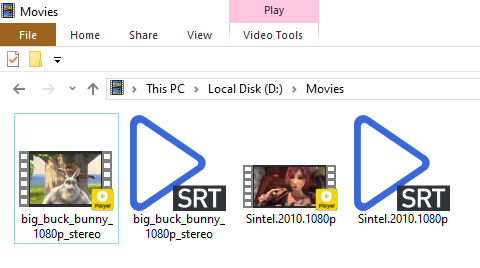
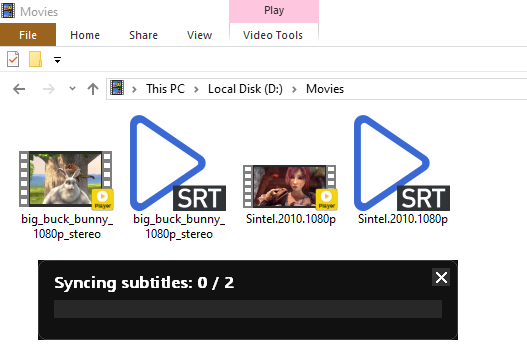
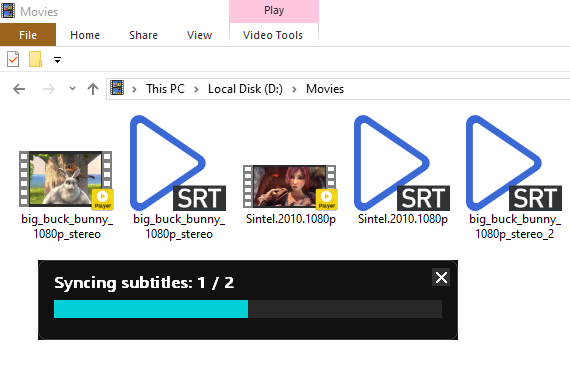
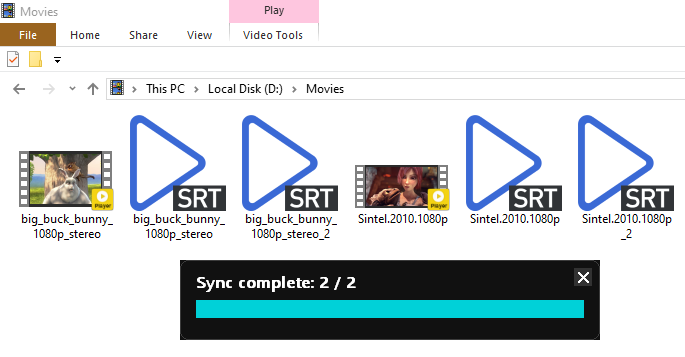
The subtitle automation flow in Smart Home Cinema is designed to stay simple from the user’s perspective: movie files appear first, subtitles are downloaded automatically, synchronization can be applied when needed, and the folder can then be cleaned so only the final correct subtitle remains next to each video.
1) Download Subtitles


2) Sync Subtitles
3) Clean Subtitles
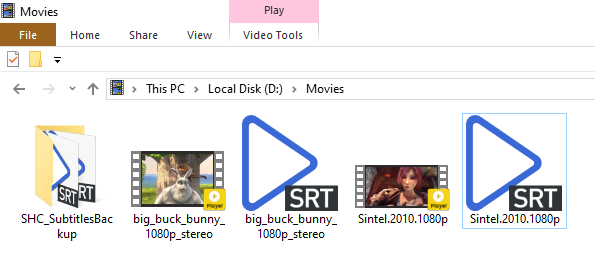
Some screenshots in this article contain frames from the open movies Big Buck Bunny and Sintel by the Blender Foundation, used under the Creative Commons Attribution 3.0 (CC BY 3.0) license. Screenshots were cropped and used for demonstration purposes.
A Fully Automated Subtitle Workflow on Windows
Smart Home Cinema – Voice Control integrates automatic subtitle downloading directly into a local Windows-based home cinema setup.
Using the official OpenSubtitles API v2 , Smart Home Cinema allows entire folders to be processed through a single voice command. Subtitles are retrieved directly from OpenSubtitles and placed locally next to each video, while playback itself remains fully offline and under your control.
OpenSubtitles also published a technical overview of how their API v2 was integrated into Smart Home Cinema. You can read their article here: How We Integrated OpenSubtitles API v2 into Smart Home Cinema .
Your movies stay local.
Your subtitles download automatically.
Your experience remains uninterrupted.