
Using a Windows PC as a Home Theater
For many people, the idea of using a Windows PC as a home theater sounds unusual.
Most modern discussions about home cinema revolve around streaming devices, smart TVs, and subscription platforms.
But for users who maintain local movie libraries, a different setup is often far more practical.
A Windows PC connected to a television, with movies stored locally and played through a dedicated media player.
In this type of setup, the PC becomes the center of the home theater.
- No streaming apps
- No media servers
- No platform restrictions
Just local movie files, a large screen, and a reliable media player.
For many years, this approach has remained surprisingly popular among users who prefer to keep full control over their media libraries.
And when it comes to playing those files on Windows, two players consistently dominate the conversation:
- VLC Media Player
- PotPlayer
Both are widely used for local movie playback and both can work extremely well in a PC-to-TV home theater environment.
But while the hardware setup may be simple, the real experience of using a PC as a home theater depends heavily on how playback is controlled.
How to Use a PC as a Home Theater
Turning a Windows PC into a home theater system is surprisingly simple.
All you need is a computer connected to a TV, local movie files, and a capable media player such as VLC or PotPlayer.
Once the player runs in fullscreen mode, the PC effectively behaves like a dedicated home theater device capable of handling large video files, multiple audio tracks, and external subtitles.
This type of configuration is often called a home theater PC setup, where a standard Windows computer becomes the central playback device for local media.
For users who maintain personal movie libraries, this approach provides flexibility and control that streaming platforms often cannot offer.
A Simple Windows PC Home Theater Setup
The basic configuration is straightforward.
- A Windows computer connected to a television through HDMI
- Movies stored locally on disk
- Playback handled by a media player like VLC or PotPlayer
Once fullscreen playback starts, the experience can be very close to a traditional home theater system.
Modern media players handle:
- large video files
- high-resolution playback
- multiple audio tracks
- external subtitles
- fullscreen viewing
extremely well.
For users who prefer local media instead of streaming services, this setup offers a level of flexibility that streaming platforms simply cannot match.
But there is one problem that becomes obvious very quickly.
The Friction Problem
When a PC is used as a home theater, interaction suddenly becomes awkward.
Watching from a couch or from bed means the computer is several meters away.
Simple actions require reaching for a keyboard or mouse:
- Pause the movie
- Adjust subtitles
- Skip forward
- Start the next movie
- Stop playback
Individually these actions are small, but together they introduce constant friction into the viewing experience.
Streaming platforms solved this problem years ago by designing highly optimized remote interfaces.
But local playback setups rarely offer the same level of convenience.
This situation is explored in more detail in How to Watch Movies From Bed on a PC, where the idea of hands-free movie control is explained step by step.
And this is exactly where voice control becomes interesting.
VLC and PotPlayer in a Home Theater Environment
Both VLC and PotPlayer are excellent choices for local playback on Windows.
They approach the problem slightly differently, but each offers capabilities that make them suitable for PC-based home theaters.
VLC
VLC is one of the most widely known media players in the world.
It is known for its stability, wide codec support, and predictable behavior across platforms.
One particularly interesting feature of VLC is its built-in HTTP control interface.
This allows the player to receive commands through a local API, making it possible for external systems to control playback in a structured way.
PotPlayer
PotPlayer is especially popular among Windows users who watch large collections of local media.
It offers extensive customization options, advanced subtitle handling, and a large number of configurable hotkeys.
While PotPlayer does not expose the same type of HTTP control interface as VLC, it remains highly controllable through keyboard shortcuts and predictable window behavior.
Both players are lightweight, stable, and well suited for local movie libraries.
But even with powerful media players, the core interaction problem remains.
Taking PC Home Theater One Step Further
The real limitation of most PC-based home theater setups is not playback capability.
It is control.
Even with excellent media players, users still rely on keyboards, remotes, or wireless mice to manage playback.
Smart Home Cinema – Voice Control approaches the problem differently.
Instead of replacing the media player, it adds a voice-controlled automation layer on top of existing players like VLC and PotPlayer.
At the core of this approach is a much simpler way of handling playback — one that does not rely on media libraries, playlists, or tracking systems. This idea is explained in the First File Rule , where playback is driven directly by the contents of the movie folder.
For a deeper look at how this local-first playback model evolved into a full voice-controlled system, you can also read the Hackernoon article: I Built a Voice-Controlled Home Cinema for Windows Because I Was Tired of Getting Up to Pause Movies .
This makes it possible to control the viewing experience through simple voice commands.
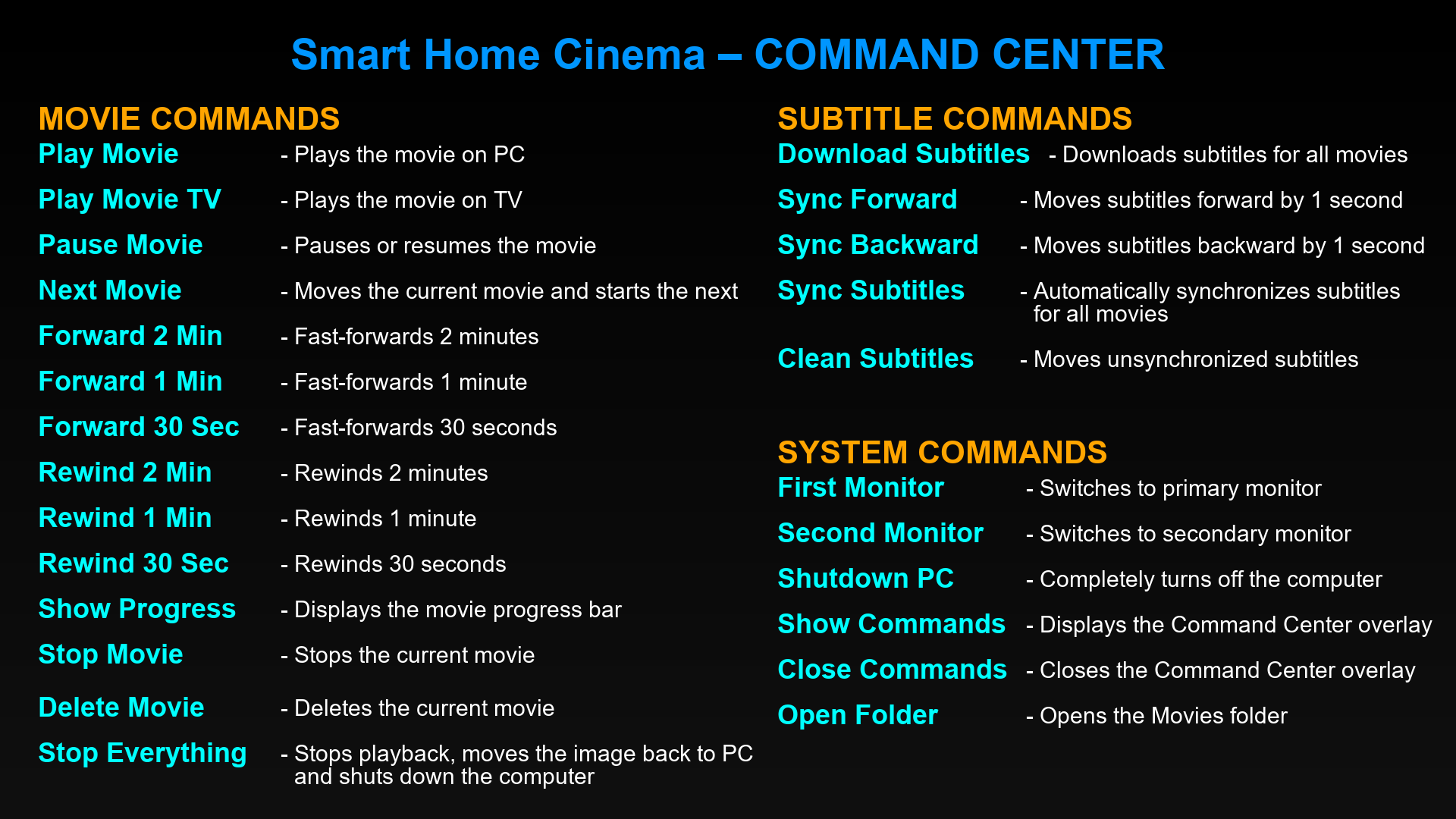
Smart Home Cinema Command Center — Overview of voice commands used to control movie playback.
Instead of reaching for the keyboard, users can interact with the system naturally — starting a movie, pausing playback, skipping forward, adjusting subtitles, or moving to the next movie.
The goal is not to replace the media player itself, but to remove the friction of interacting with a computer from across the room.
In practice, this allows a full movie-watching session to happen hands-free — from starting playback to finishing the movie and moving on to the next one — without touching the keyboard or mouse.
A movie can be started, paused, adjusted, finished, and replaced by the next one while the viewer remains comfortably on the couch or in bed.
A Different Kind of Home Theater
Traditional home theater discussions often focus on hardware.
Projectors, receivers, speakers, and display technologies dominate most conversations.
But for users who watch movies from local libraries, the real experience is often defined by software and interaction.
A Windows PC connected to a TV already provides a powerful playback platform.
With media players like VLC or PotPlayer, the system is stable, flexible, and capable of handling almost any video format.
Adding voice control simply removes the last layer of friction.
The result is a home theater experience built around local media, full control, and hands-free interaction.
Sometimes the most powerful upgrades are not about new hardware.
They are about changing how we interact with the systems we already have.