
How to Use Smart Home Cinema
This page explains how to use Smart Home Cinema – Voice Control in everyday life — after installation is complete.
This guide applies to both official editions: Local Voice Edition and Voice Assistant Edition.
The movie commands and daily workflow are mostly the same in both editions. The difference is how commands are triggered: Local Voice Edition uses your PC microphone, while Voice Assistant Edition uses Alexa / Google Assistant through TriggerCMD.
If you are looking for installation help, go to the Full Installation & Setup Guide page instead.
After Smart Home Cinema is installed, you can watch movies completely hands-free. This chapter shows the full workflow from preparation to shutdown.
1.0 — Before watching: preparing your Movies folder
Everything in Smart Home Cinema starts with your main Movies folder. For the best experience:
- Place movies directly inside the folder (not inside sub-folders).
- If movies are archived, extract them first.
- Each episode / movie should be a single clean video file.
If you use subtitles, you can prepare everything in one batch. For more details about how subtitle download works and what to expect, see OpenSubtitles Integration:
- Download Subtitles — downloads subtitles for all movies.
- Sync Subtitles — creates synchronized subtitle versions.
- Clean Subtitles — moves old subtitles to backup and renames the correct ones.
1.1 — Start watching without touching your PC
Sit comfortably — on the couch, bed, or chair — and start the first movie.
- Play Movie TV — plays the first movie on your TV in fullscreen.
- Play Movie — plays the first movie on your PC monitor.
1.2 — Pause, resume and skip parts of the movie
- Pause Movie — pauses playback.
- Resume Movie — continues playback.
To skip intros or long moments:
- Forward 30 seconds / Forward 1 minute / Forward 2 minutes
- Rewind 30 seconds / Rewind 1 minute / Rewind 2 minutes
1.3 — Fine-tuning subtitle synchronization
If subtitles are slightly ahead or behind:
- Sync Forward — shifts subtitles forward by 1 second.
- Sync Backward — shifts subtitles backward by 1 second.
Repeat until the dialogue and subtitles match perfectly.
1.4 — When you forget a command
If you don't remember what to say, open the visual Command Center:
- Show Commands — displays all commands fullscreen.
- Close Commands — closes it and returns to your movie.
1.5 — See how much time has passed
To check how much of the movie has been watched:
Show Progress
Depending on version:
- VLC Version: exact time overlay (from VLC API).
- PotPlayer Version: native yellow bar — approximate, but useful.
1.6 — Delete movies you no longer want
If you don't want to keep the movie anymore:
Delete Movie
The movie and its subtitles are removed from the folder and sent to Recycle Bin — they can still be recovered if needed.
1.7 — Switching to the next movie
When a movie ends or the end credits start:
Next Movie
- The player closes.
- A short overlay appears.
- The watched movie + subtitles are moved to your "Watched" folder.
- The next movie starts automatically in fullscreen.
1.8 — Ending the session (sleep mode style)
When you're done for the night:
Stop Everything
- Stops playback.
- Moves the image back to the primary monitor (if needed).
- Shuts down the PC completely.
If you only want to power off the PC:
Shutdown PC
Once you understand the basic workflow, Smart Home Cinema becomes part of your normal routine. This section shows how typical evenings look in practice — using real-world scenarios, not technical details.
2.1 — Watching TV shows episode by episode
For TV shows, place the next episodes in your Movies folder in the order you plan to watch them. Smart Home Cinema always works with the first video file in that folder.
After you finish an episode, simply say Next Movie.
- The current episode is moved to your Watched folder.
- The next episode becomes the new first file in the Movies folder.
- Playback starts automatically in fullscreen, just like the previous one.
You do not need playlists or manual selection — just keep saying Next Movie when you are ready for the next episode.
2.2 — Watching on TV vs. PC monitor
Some days you watch from your desk, other days from the bed or sofa in front of the TV. Smart Home Cinema lets you switch between these scenarios without touching Windows display settings.
- Play Movie TV — starts the first movie on your TV in fullscreen.
- Play Movie — starts the first movie on your PC monitor.
You choose how you watch simply by using the right voice command — no dragging windows between screens, no manual resizing.
2.3 — Skipping intros and boring parts
Many movies and TV shows have long intros, recaps, or end credits. Instead of getting up to grab the keyboard or mouse, you can skip them by voice.
During playback, simply say:
- Forward 30 seconds / Forward 1 minute / Forward 2 minutes
- Rewind 30 seconds / Rewind 1 minute / Rewind 2 minutes
This makes it easy to skip intros, long recaps, or slow scenes — all without touching the PC.
2.4 — Fixing “almost correct” subtitles
Sometimes a subtitle file is good, but slightly out of sync — the text appears a bit earlier or later than the dialogue. You do not need to search for a new subtitle; you can fix it while watching.
If the subtitle is late or early, use:
- Sync Forward — shifts subtitles forward by 1 second each time.
- Sync Backward — shifts subtitles backward by 1 second each time.
You can repeat these commands until the text matches the actor’s voice. All adjustments are done live, during playback, without pausing the movie or opening any menus.
2.5 — Weekend marathons & long sessions
For long movie nights or weekend marathons, Smart Home Cinema lets you stay in one place and control everything by voice:
- Start the first movie with Play Movie TV or Play Movie.
- Skip intros or recaps whenever you want using the forward / rewind commands.
- Use Show Commands if you forget a command.
- Move to the next title with Next Movie.
- End the night with Stop Everything when you are ready to sleep.
The goal is simple: once your Movies folder is prepared, you can watch for hours without touching the PC — just your voice and your movie collection.
Some behaviors may look unusual at first, but they are intentional and part of how Smart Home Cinema works. This section explains what is normal so you don’t mistake it for a problem.
3.1 — The First File Rule
Smart Home Cinema always controls the first video file inside your Movies folder.
- Play Movie — always starts the first file
- Next Movie — always skips the first file
- Delete Movie — always deletes the first file
This design keeps everything predictable and extremely stable — no playlists, no databases, no confusion. If you want to see the full command logic in practice, you can also read Why You Don’t Need a Media Library to Control Movies (The First File Rule).
If you want a specific viewing order, simply rename files like this:
01 - Movie B.mkv
02 - Movie A.mkv
03 - Movie C.mkv
3.2 — Subtitles are not always guaranteed
Smart Home Cinema can download, sync, and clean subtitles — but results depend entirely on what exists in the OpenSubtitles database.
For some movies or releases, there may be:
- no subtitle available at all
- a subtitle in the wrong language
- a subtitle made for a different cut / edition
In these situations, the system selects the closest match. However, some subtitles simply cannot be synchronized correctly — and this is normal behavior, not a problem with Smart Home Cinema.
If timing is only slightly off, you can adjust manually using: Sync Forward / Sync Backward.
Sometimes there simply is no perfect subtitle for a specific release — even online.
3.2.1 — Subtitle sync may sometimes take longer than usual
When you use Sync Subtitles, Smart Home Cinema processes each movie one by one and tries to match the subtitle with the audio as accurately as possible.
In most cases, synchronization finishes quickly. However, in rare situations it may take much longer than expected.
- subtitle downloaded is badly misaligned
- the movie is very long
- the audio track is complex
This is normal and does not mean the system is stuck.
While synchronization is running, you will always see the small turquoise counter in the bottom-right corner of the screen. It shows that Smart Home Cinema is still working and keeps track of progress.
The best option is simply to let the process finish. Once done, subtitles will be synchronized and ready to use.
Very long syncs are rare — usually only one problematic movie, not all of them.
3.3 — Seek accuracy in PotPlayer
In the PotPlayer Version, skip commands are approximate.
- “Forward 1 minute” may skip ~50s
- “Forward 30 seconds” may skip slightly less
This is normal behavior inside PotPlayer and does not affect system stability.
3.4 — Delete Movie does not always behave the same
When you use Delete Movie, Smart Home Cinema removes the current movie from your Movies folder — but what happens next depends on the media player.
PotPlayer Version
PotPlayer keeps the file open while it is playing. This means:
- the movie disappears from the folder
- but playback continues normally until the player closes
Final deletion completes only when PotPlayer closes. This is normal and completely safe.
VLC Version
VLC works differently: while a movie is playing, VLC does not allow the file to be deleted.
For this reason, deletion will only succeed after the movie is stopped.
Recommended way (both versions)
If you want to delete the movie you are currently watching, use this sequence:
- Stop Movie
- Delete Movie
This ensures clean, predictable behavior in both versions.
3.5 — “Show Progress” works differently in VLC vs. PotPlayer
The Show Progress command has the same purpose in both versions — to let you quickly see how much of the movie has been watched — but the way it looks is different.
VLC Version
Smart Home Cinema reads the exact playback time from VLC and shows a clear, turquoise time display on the screen.
- time is precise
- works even if the VLC controls are hidden
PotPlayer Version
PotPlayer does not provide the same time interface as VLC. Instead, Smart Home Cinema simply brings up PotPlayer’s own built-in yellow progress bar at the bottom of the screen.
- you see PotPlayer’s native progress bar
- the value is approximate, but completely usable
This difference is normal and intentional. Each version uses the safest method available for that specific player to keep everything stable and compatible.
This section summarizes practical recommendations that are explained in detail throughout the documentation. For best results, please review the sections below.
📁 Media folders & organization
For reliable automation, use a dedicated Movies folder and avoid moving or renaming
folders after configuration.
See: Installation & Folder Setup
🗣 Voice command usage
Voice recognition accuracy depends on room noise, microphone placement,
pronunciation, and the voice assistant used.
See: Voice Commands & Usage
💻 System-level commands
Commands such as Shutdown PC and
Stop Everything close applications immediately.
Always save important work before using them.
See: System Commands & Safety Notes
🧪 Trial & evaluation
Use the 14-day trial period to fully test player integration, subtitle handling,
folder structure, and voice commands before activating a license.
See: Licensing & Trial Information
🗄 File operations
Some commands may move or delete media files as part of their intended
operation. These actions occur only when explicitly triggered by the user.
See: File Operations & Automation
Smart Home Cinema includes a Command Center that shows the available voice commands. The layout depends on the edition you use.
Voice Assistant Edition uses the classic Command Center for Alexa / Google Assistant + TriggerCMD setups. Local Voice Edition uses a two-page Command Center with additional local voice commands such as wake up, go to sleep and status.
For a broader explanation with practical context, see How to Control Movies on PC Using Voice Commands .
Voice Assistant Edition — Command Center
In the Voice Assistant Edition, commands are triggered through Alexa or Google Assistant using TriggerCMD. This is the classic Smart Home Cinema command set.
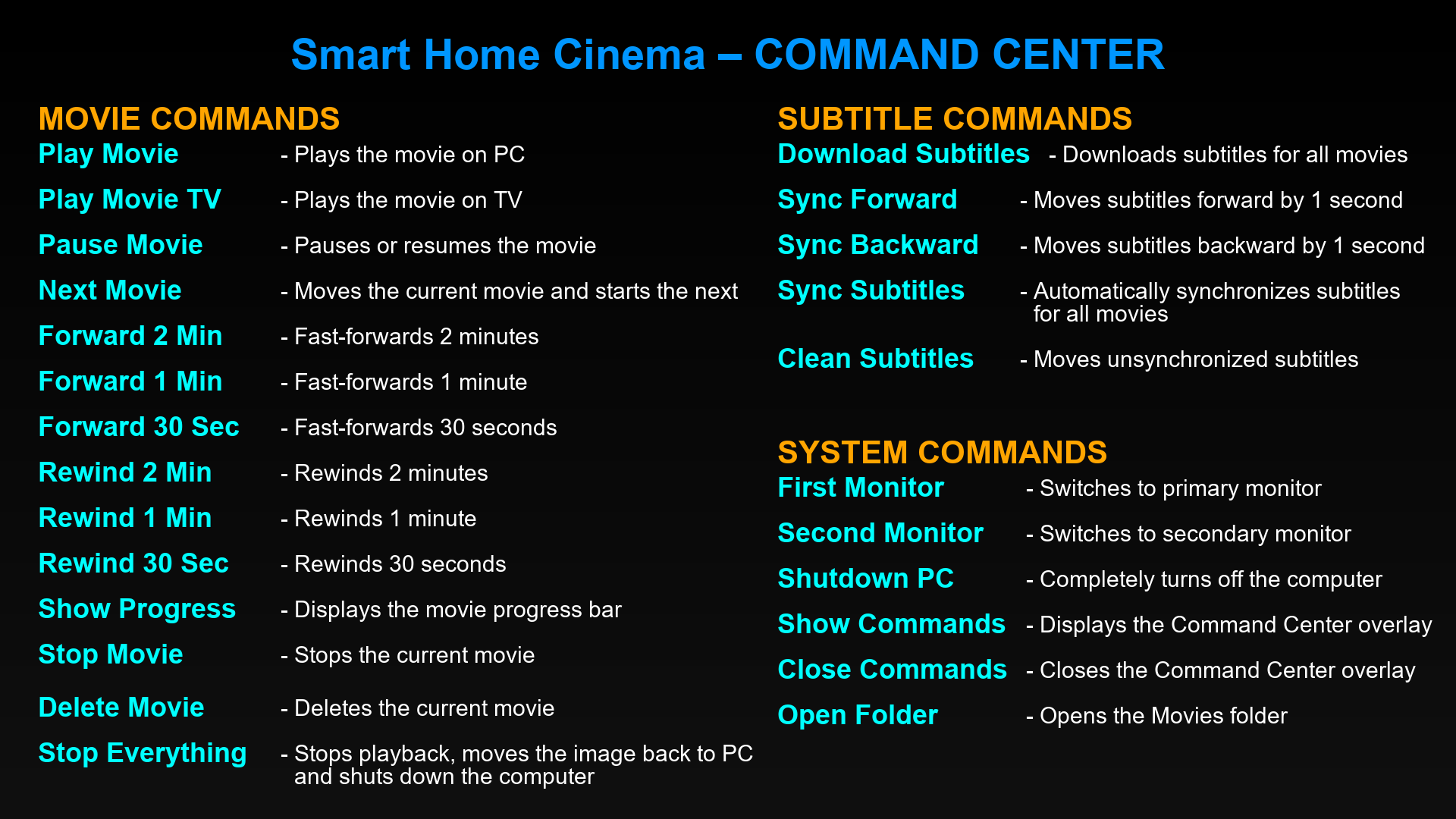
🎬 Playback commands
- Play Movie — plays the first movie on PC
- Play Movie TV — plays the first movie on TV
- Pause Movie — pauses or resumes playback
- Stop Movie — stops the current movie
- Forward 2 Min — jumps ahead 2 minutes
- Forward 1 Min — jumps ahead 1 minute
- Forward 30 Sec — jumps ahead 30 seconds
- Rewind 2 Min — goes back 2 minutes
- Rewind 1 Min — goes back 1 minute
- Rewind 30 Sec — goes back 30 seconds
- Show Progress — shows playback progress
- Delete Movie — deletes the current movie
- Next Movie — Moves the current movie to the Watched folder and starts the next one
- Stop Everything — stops playback, returns to PC, shuts down
🗣 Subtitle commands
- Download Subtitles — downloads available subtitles
- Sync Subtitles — auto-synchronizes all subtitles
- Sync Forward — moves subtitles forward by 1 second
- Sync Backward — moves subtitles backward by 1 second
- Clean Subtitles — moves unsynchronized subtitles to backup
💻 System commands
- First Monitor — switch image to main monitor
- Second Monitor — switch image to TV / second monitor
- Show Commands — open Command Center
- Close Commands — close Command Center
- Open Folder — opens the Movies Folder
- Shutdown PC — power off the computer
Local Voice Edition — Command Center
Local Voice Edition has a two-page Command Center designed for microphone-based control.
Page 1 contains Movie Commands and Subtitle Commands. Page 2 contains Local Voice Commands and System Commands.
- Smart Cinema show commands — opens page 1
- Smart Cinema more commands — opens page 2
- Smart Cinema close commands — closes the Command Center overlay
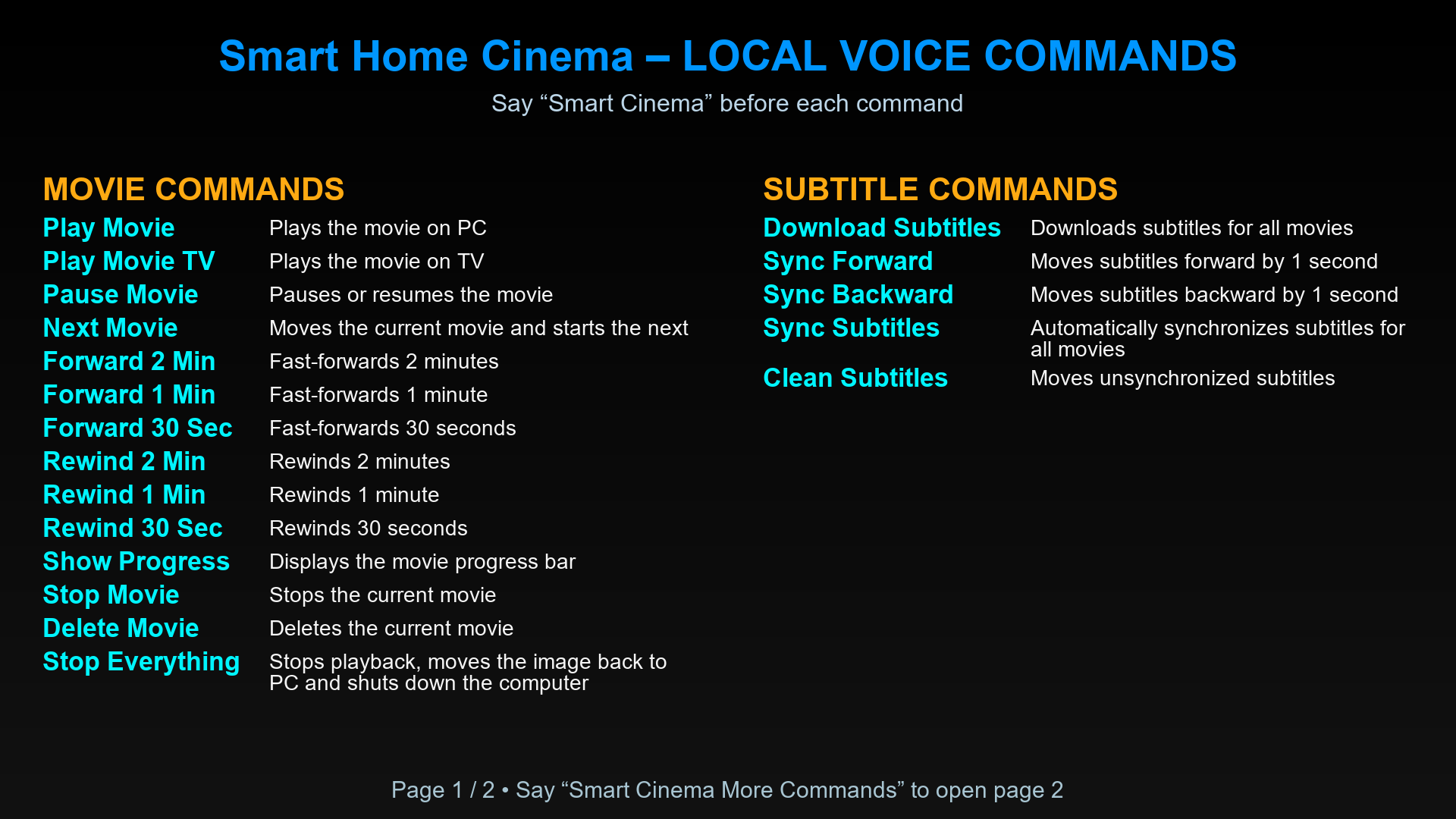
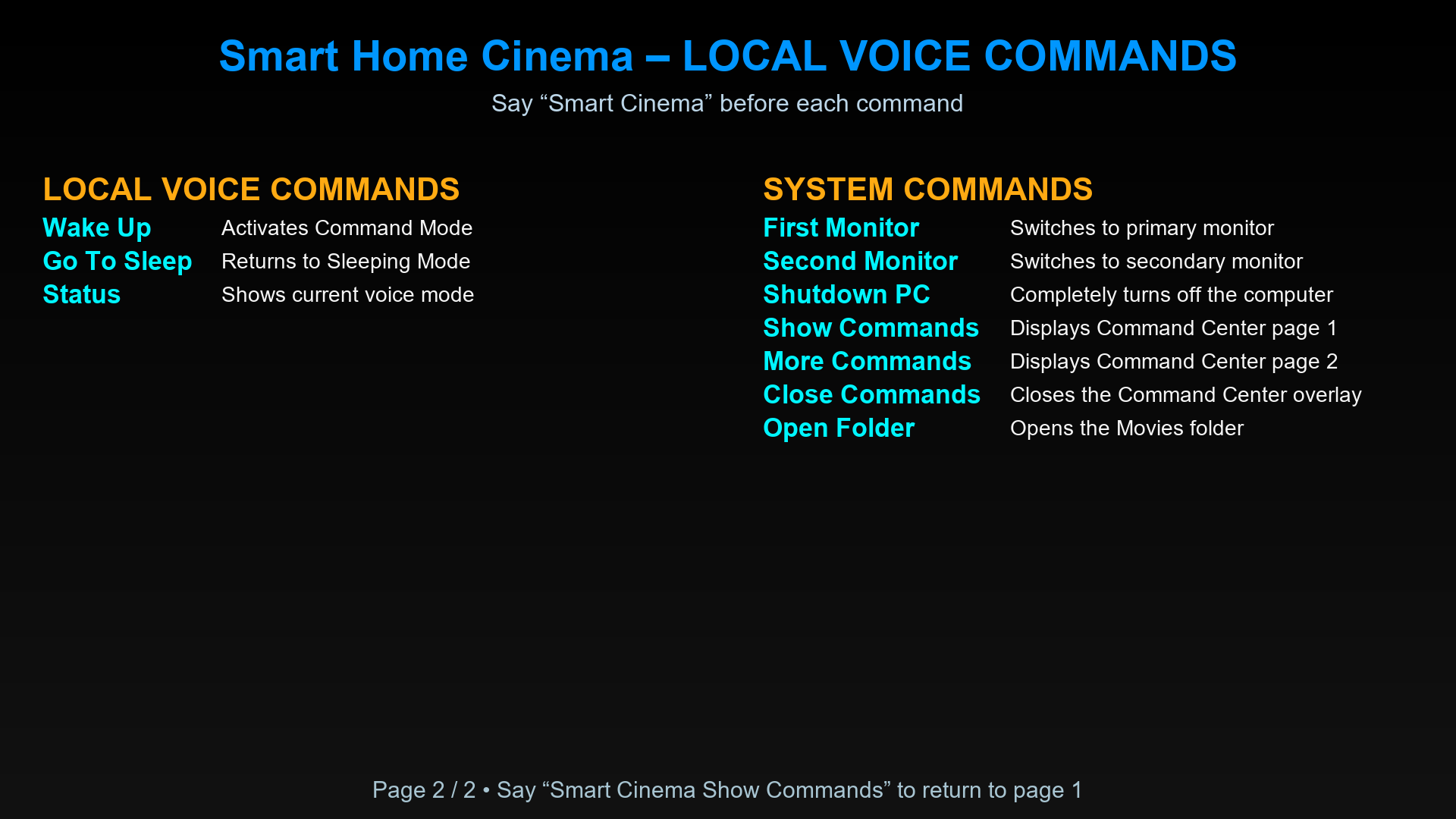
Local Voice commands
- Smart Cinema wake up — enters Command Mode
- Smart Cinema start listening — enters Command Mode
- Smart Cinema go to sleep — returns to Sleeping Mode
- Smart Cinema stop listening — returns to Sleeping Mode
- Smart Cinema sleeping mode — returns to Sleeping Mode
- Smart Cinema status — shows the current Local Voice state
❌ PotPlayer / VLC not detected
Cause: player installed in a custom path.
Fix: uninstall and reinstall using default paths:
- PotPlayer — C:\Program Files\DAUM\PotPlayer
- VLC — C:\Program Files\VideoLAN\VLC
Then run the Smart Home Cinema installer again.
❌ Installer stops or refuses to continue
Cause: installation rules not respected.
Check:
- Movies + Watched folders are NOT on USB drives
- Both folders are on the same partition
- Folders are not identical
- Installer was started as Administrator
❌ Antivirus blocks or removes files
Fix:
- Restore files from quarantine
- Add exclusions:
C:\Program Files\Smart Home Cinema
C:\ProgramData\SHC
❌ Installer completed, but commands don’t work
For Local Voice Edition, check:
- Smart Home Cinema Local Voice is running in the Windows System Tray
- Microphone is not in Microphone Off / OFF Mode
- You started Sleeping Mode from the tray menu
- You said Smart Cinema wake up before normal movie commands
- Your microphone works correctly in Windows
- Correct media player version installed
For Voice Assistant Edition, check:
- TriggerCMD is installed, running and logged in
- Alexa / Google Assistant is linked correctly
- Smart Home Cinema commands were imported into TriggerCMD
- Media player was installed after Smart Home Cinema
Fix: complete the setup steps for your edition, then reinstall Smart Home Cinema if needed.
✔ Quick installation checklist
All editions:
- Player installed in default path
- No USB drives
- Antivirus not blocking SHC
- Installer unblocked + Admin rights
Local Voice Edition:
- Working microphone connected to the PC
- Local Voice app visible in the System Tray
Voice Assistant Edition:
- TriggerCMD logged in
- Alexa / Google Assistant linked
13.2 — Playback problems
❌ Play Movie does nothing
Fix:
- Movies folder contains at least one video
- No sub-folders
- Correct media player version installed
- Correct Smart Home Cinema edition installed
If using Local Voice Edition:
- Make sure Local Voice is in Command Mode
- If it is in Sleeping Mode, say Smart Cinema wake up first
If using Voice Assistant Edition:
- Make sure TriggerCMD is running and logged in
- Make sure the command works manually in TriggerCMD
❌ Wrong order / wrong movie
Rule: SHC always plays the FIRST file.
Rename:
01-Movie.mkv
02-Movie.mkv
❌ Not fullscreen / wrong screen
- TV ON and connected
- Win + P → Second Screen
- If needed, repeat the command once more
❌ Next Movie skips unexpectedly
Check which file is actually first in the folder.
✔ Quick playback checklist
- Valid video file in folder
- No sub-folders
- Correct Smart Home Cinema edition installed
- Correct media player version installed
- File order controlled by numbers
Logs: C:\ProgramData\SHC\Logs
13.3 — Subtitle problems
❌ No subtitles downloaded
- OpenSubtitles account confirmed
- Correct credentials
- Internet connection
- Some movies simply have no subtitles
❌ Not all subtitles were downloaded in one pass
In rare cases, larger subtitle batches may complete only partially on the first run. If this happens, run Download Subtitles once more. The remaining files will usually be processed on the second pass.
❌ Wrong subtitle language
If wrong language was selected → reinstall SHC and choose the correct one.
❌ Subtitles out of sync
Use:
Sync Forward / Sync Backward
❌ Auto sync didn’t help
- subtitle belongs to different release
- scenes added or removed
- timing drifts across movie
Try another subtitle or adjust manually.
❌ Too many subtitle files
Use Clean Subtitles.
❌ Sync overlay shows wrong numbers
Delete:
C:\ProgramData\SHC\progress_state.json
✔ Quick subtitle checklist
- Account OK
- Correct credentials
- Try alternative subtitle
13.4 — Voice control issues
Local Voice Edition — you speak, but nothing happens
- Make sure Smart Home Cinema Local Voice is running in the System Tray
- If the app is in Microphone Off / OFF Mode, start Sleeping Mode from the tray menu
- If the app is in Sleeping Mode, say Smart Cinema wake up before normal commands
- Check that the correct microphone is selected and working in Windows
- Move the microphone closer to your viewing position if recognition is unreliable
- Reduce TV/speaker volume if movie audio interferes with recognition
Local Voice Edition — status command does not work
- Smart Cinema status works only when the microphone is active
- If Local Voice is in Microphone Off / OFF Mode, voice status cannot be detected
- Check the current state from the System Tray menu
Voice Assistant Edition — you speak, but nothing happens
- TriggerCMD running
- Test commands manually in TriggerCMD
- Retry after 1–2 minutes
Voice Assistant Edition — command shows “Pending”
Restart TriggerCMD agent.
Voice Assistant Edition — command runs twice
Remove duplicate routines.
✔ Quick voice checklist
Local Voice Edition:
- Local Voice running in System Tray
- Sleeping Mode or Command Mode active
- Microphone working in Windows
- Wake phrase used before normal commands
Voice Assistant Edition:
- TriggerCMD running
- Correct PC selected
- Alexa / Google linked
13.5 — File & permission issues
❌ SHC cannot save settings
Folder required:
C:\ProgramData\SHC
❌ Commands break after moving Movies folder
Use original path — otherwise reinstall.
❌ Access denied
- Installer as Administrator
- Do not install in custom folders
13.6 — Logs & optional AI help
Logs:
C:\ProgramData\SHC\Logs
You may paste an error line into an AI tool — remove personal data first.
13.7 — Safe reset — full reinstall
Recommended when folders were moved, subtitle language is wrong, files were deleted or install was interrupted. Your movies remain untouched.