
Automatic Subtitles on Windows (OpenSubtitles API v2)
Automatic Subtitle Downloads on Windows with OpenSubtitles API (Batch + Voice Command)
OpenSubtitles is the subtitle database that powers the automatic subtitle download feature in Smart Home Cinema – Voice Control.
This page explains, in simple language, what OpenSubtitles is, why it’s used, and what you need to enable batch subtitle downloads for movie folders on Windows. If you only needed a short explanation before jumping into the full setup, you’re in the right place.
You can also read our article about automatic subtitle downloads here: How to Automatically Download Subtitles for Entire Movie Folders on Windows .
What is OpenSubtitles?
OpenSubtitles is one of the largest subtitle libraries in the world, with subtitles in many languages for movies and TV shows.
Smart Home Cinema uses OpenSubtitles to find and download subtitles automatically for the videos in your Movies folder — so VLC or PotPlayer can load them without manual selection.
What is OpenSubtitles API v2 (and why it matters)?
Smart Home Cinema integrates with the official OpenSubtitles API v2 (REST API).
That means subtitle downloads are:
- official and supported (no scraping, no unofficial sources)
- structured and predictable (search + download via API)
- secure (token-based access)
Technical Overview
The integration between Smart Home Cinema and the OpenSubtitles API v2 was also featured on the OpenSubtitles developer blog, where the overall architecture and automation workflow are explained.
Read the OpenSubtitles developer article about this integration →
How does it work with Smart Home Cinema?
OpenSubtitles is used only for subtitle retrieval. Playback stays local on your PC.
In the Local Voice Edition, the flow is:
Microphone → Local Voice Engine → Smart Home Cinema → OpenSubtitles API → subtitle (.srt) saved next to the video
In the Voice Assistant Edition, the flow is:
Voice → Alexa / Google Assistant → TriggerCMD → Smart Home Cinema → OpenSubtitles API → subtitle (.srt) saved next to the video
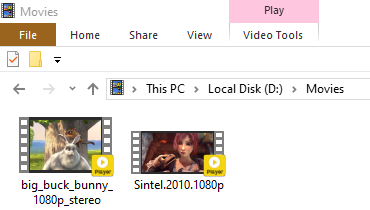
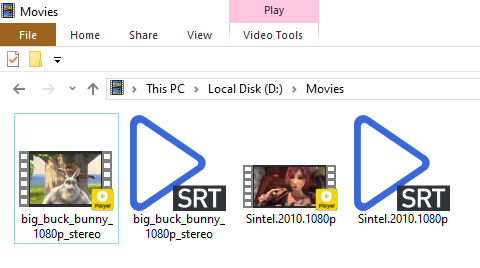
After the command is triggered, matching subtitle files are downloaded automatically and saved next to each video.
Screenshots include frames from Big Buck Bunny and Sintel by the Blender Foundation, used under CC BY 3.0 .
This supports:
- single movies
- entire folders (batch mode — processes multiple video files automatically)
Example voice actions:
- “Download Subtitles”
- “Sync Subtitles” (optional — used only when subtitle adjustment is needed)
- “Clean Subtitle” (used after Sync Subtitles to finalize and keep a single correct subtitle per video)
Do I need an OpenSubtitles account?
Yes. To use the OpenSubtitles API, you must create an OpenSubtitles account and log in.
Smart Home Cinema uses your login to request a token and download subtitles through the API.
What if no subtitle exists (or the subtitle is wrong)?
This can happen and it’s normal.
- If OpenSubtitles has no matching subtitle, nothing will be downloaded.
- Sometimes a subtitle exists but matches a different release/version.
If that happens, you can delete the incorrect subtitle and manually choose another one from OpenSubtitles.com.
Quick FAQ
Do I need OpenSubtitles if I never use subtitles?
No — you can ignore this feature completely.
Is OpenSubtitles required for Smart Home Cinema to run?
No — it’s only required for automatic subtitle downloads.
Does this work for TV show folders too?
Yes — Smart Home Cinema supports batch subtitle downloads for multiple video files inside the same folder, including full TV series seasons or episode collections.
Does Smart Home Cinema use unofficial subtitle sources?
No — it uses the official OpenSubtitles API v2.
Will this automatically load subtitles in VLC or PotPlayer?
Yes — when the subtitle matches the video filename, the player loads it automatically.
Continue with the Full Setup
This page is only the introduction. To configure OpenSubtitles step-by-step (with screenshots):
Open the full OpenSubtitles setup tutorial
If you want to jump straight to the OpenSubtitles chapter in the full English tutorial, you can open the direct OpenSubtitles tutorial section.