
Jellyfin Voice Commands and TV Compatibility
Smart Home Cinema for Jellyfin has been tested across the main Jellyfin TV client families.
Use this page to see which commands are supported on LG webOS, Samsung Tizen, Android TV / Google TV and Amazon Fire TV, and where client-specific limitations apply.
For commands shared by both Smart Home Cinema for Jellyfin editions, TV-side compatibility is the same. The editions differ in how your voice command reaches Smart Home Cinema:
- Local Voice Edition uses offline voice recognition on your Windows PC.
- Voice Assistant Edition uses Alexa or Google Assistant through TRIGGERcmd.
TV Platform Summary
The core Jellyfin playback, Movie List and TV-selection experience works across all four validated TV platform families. Some additional commands depend on the capabilities exposed by each Jellyfin client.
On mobile, swipe horizontally to view all TV platforms.
| TV platform | Overall support | Main client-specific limitations | Command Center |
|---|---|---|---|
| LG webOS | Supported | Volume up and volume down are not available. | PNG pages |
| Samsung Tizen | Supported | Volume up and volume down are not available. | PNG pages |
| Android TV / Google TV | Limited Supported with client-specific limitations | Remote navigation is not available. Open Playlist has a more limited client-specific behavior. | MP4 pages |
| Amazon Fire TV / Fire OS | Limited Supported with client-specific limitations | Remote navigation and audio controls are not available. Open Playlist has a more limited client-specific behavior. | MP4 pages |
| Roku | Not supported | The Jellyfin Roku client does not expose the capabilities required by the current Smart Home Cinema architecture. | — |
How to Read the Compatibility Tables
| Status | Meaning |
|---|---|
| Supported | The command works on the selected TV platform. |
| Limited | The command works, but the Jellyfin client provides a more limited or platform-specific experience. |
| Not supported | The Jellyfin client does not expose or execute the required command through the Jellyfin Server API. |
Full Voice Command Compatibility
The following tables cover the commands shared by Voice Assistant Edition and Local Voice Edition. TV-side compatibility is the same for both editions.
Playback Controls
| Voice command | LG webOS | Samsung Tizen | Android TV / Google TV | Amazon Fire TV |
|---|---|---|---|---|
| Pause Movie | Supported | Supported | Supported | Supported |
| Resume Movie | Supported | Supported | Supported | Supported |
| Stop Movie | Supported | Supported | Supported | Supported |
| Restart Movie | Supported | Supported | Supported | Supported |
| Forward 30 Seconds / 1 / 2 / 5 / 10 Minutes | Supported | Supported | Supported | Supported |
| Rewind 30 Seconds / 1 / 2 / 5 / 10 Minutes | Supported | Supported | Supported | Supported |
| Next Movie | Supported | Supported | Supported | Supported |
| Previous Movie | Supported | Supported | Supported | Supported |
| Show Progress | Supported | Supported | Supported | Supported |
Movie List, Playlist and Library
| Voice command | LG webOS | Samsung Tizen | Android TV / Google TV | Amazon Fire TV |
|---|---|---|---|---|
| Open Movie List | Supported | Supported | Supported | Supported |
| Play Movie One – Play Movie Twenty | Supported | Supported | Supported | Supported |
| Close Movie List | Supported | Supported | Supported | Supported |
| Open Movies | Supported | Supported | Supported | Supported |
| Open Collection | Supported | Supported | Supported | Supported |
| Open Playlist | Supported | Supported | Limited | Limited |
| Empty Playlist | Supported | Supported | Supported | Supported |
| Update Libraries | Supported | Supported | Supported | Supported |
On Android TV / Google TV and Amazon Fire TV, Open Playlist opens a more limited client-specific playlist view. For the most consistent numbered overview across platforms, use Open Movie List.
You do not need to open Movie List before starting an item. If you already know the slot number, say Play Movie One through Play Movie Twenty directly.
Movie List is generated from your Smart Home Cinema Playlist and updates automatically when the playlist changes. You do not need to run Update Libraries only to refresh the numbered list.
Empty Playlist removes items from your Smart Home Cinema Playlist only. It does not delete movies or episodes from your Jellyfin library.
The optional Smart Home Cinema Collection can be used as a larger curated watch pool. The Smart Home Cinema Playlist remains the active numbered list used by Play Movie One through Play Movie Twenty.
TV Selection and Command Center
| Voice command | LG webOS | Samsung Tizen | Android TV / Google TV | Amazon Fire TV |
|---|---|---|---|---|
| Use TV One / Two / Three / Four | Supported | Supported | Supported | Supported |
| Stop Everything | Supported | Supported | Supported | Supported |
| Show Commands | Supported — PNG | Supported — PNG | Supported — MP4 | Supported — MP4 |
| More Commands | Supported — PNG | Supported — PNG | Supported — MP4 | Supported — MP4 |
| Close Commands | Supported | Supported | Supported | Supported |
You can save up to four Jellyfin TV clients and select one active TV at a time. See the setup guide for TV discovery and configuration.
Audio Controls
| Voice command | LG webOS | Samsung Tizen | Android TV / Google TV | Amazon Fire TV |
|---|---|---|---|---|
| Mute Movie | Supported | Supported | Supported | Not supported |
| Unmute Movie | Supported | Supported | Supported | Not supported |
| Volume Up | Not supported | Not supported | Supported | Not supported |
| Volume Down | Not supported | Not supported | Supported | Not supported |
Audio-control support depends on the capabilities exposed by the Jellyfin TV client. Core playback and Movie List commands remain available even where audio commands are not supported.
Remote Navigation
| Voice command | LG webOS | Samsung Tizen | Android TV / Google TV | Amazon Fire TV |
|---|---|---|---|---|
| Select Item | Supported | Supported | Not supported | Not supported |
| Open Search | Supported | Supported | Not supported | Not supported |
| Go Home | Supported | Supported | Not supported | Not supported |
| Go Back | Supported | Supported | Not supported | Not supported |
| Move Left / Right / Up / Down | Supported | Supported | Not supported | Not supported |
Remote-navigation commands depend on the TV client's exposed API capabilities. They are available on LG webOS and Samsung Tizen, but not on the validated Android TV / Google TV or Amazon Fire TV clients.
Local Voice Edition Commands
Local Voice Edition adds commands for controlling the offline voice engine itself. These commands are not needed in Voice Assistant Edition.
Local Voice commands are captured by a microphone recognized by your Windows PC. To speak commands from another room, use a wireless microphone system with a receiver connected to the PC.
For normal Jellyfin commands in Local Voice Edition, first say the activation phrase Smart Cinema, pause briefly, then say the command.
For example: Smart Cinema brief pause Play Movie Seven.
The wake-up, sleep and status commands listed below are spoken as complete phrases.
| Action | Accepted voice phrases | Purpose |
|---|---|---|
| Wake Up | Smart Cinema Wake Up Smart Cinema Start Listening | Activates voice-command mode |
| Go to Sleep | Smart Cinema Go To Sleep Smart Cinema Stop Listening Smart Cinema Sleeping Mode | Returns the engine to sleeping mode |
| Status | Smart Cinema Status | Shows whether the engine is listening or sleeping |
Recommended Local Voice Alternatives
Local Voice Edition also accepts alternative phrases that can be easier for offline speech recognition to distinguish.
| Action | Standard phrase | Recommended alternative |
|---|---|---|
| Mute | Mute Movie | Sound Off |
| Unmute | Unmute Movie | Sound On |
| Seek forward | Forward 30 Seconds / 1 / 2 / 5 / 10 Minutes | Skip Ahead 30 Seconds / 1 / 2 / 5 / 10 Minutes |
Movie List and Command Center
Dynamic Movie List
Open Movie List displays a numbered overview generated from your Smart Home Cinema Playlist. The first 20 playlist items become the slots used by Play Movie One through Play Movie Twenty.
The Movie List updates automatically when the playlist changes. If you already know the slot number, you can start an item directly without opening Movie List first.
Command Center Pages
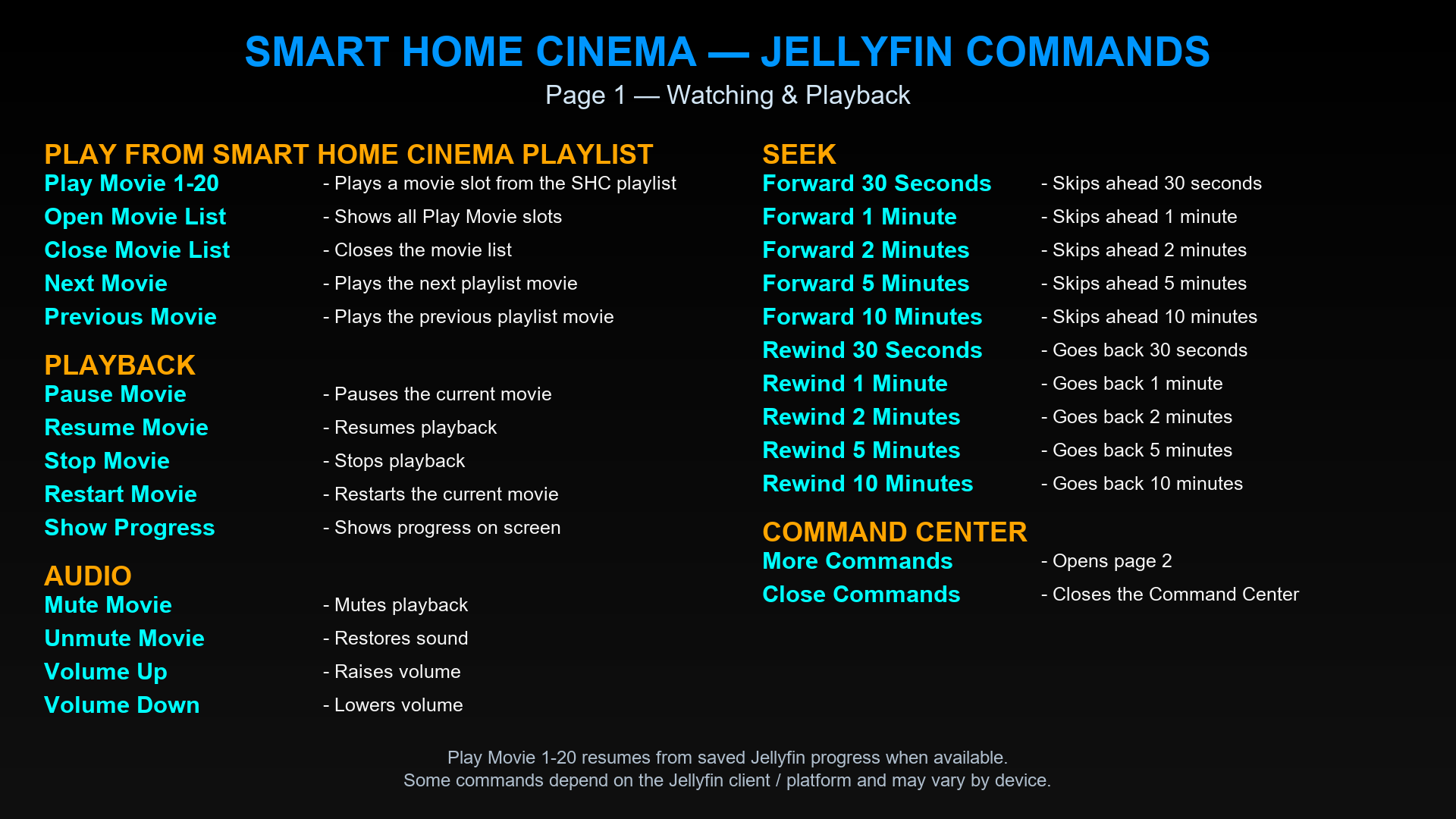
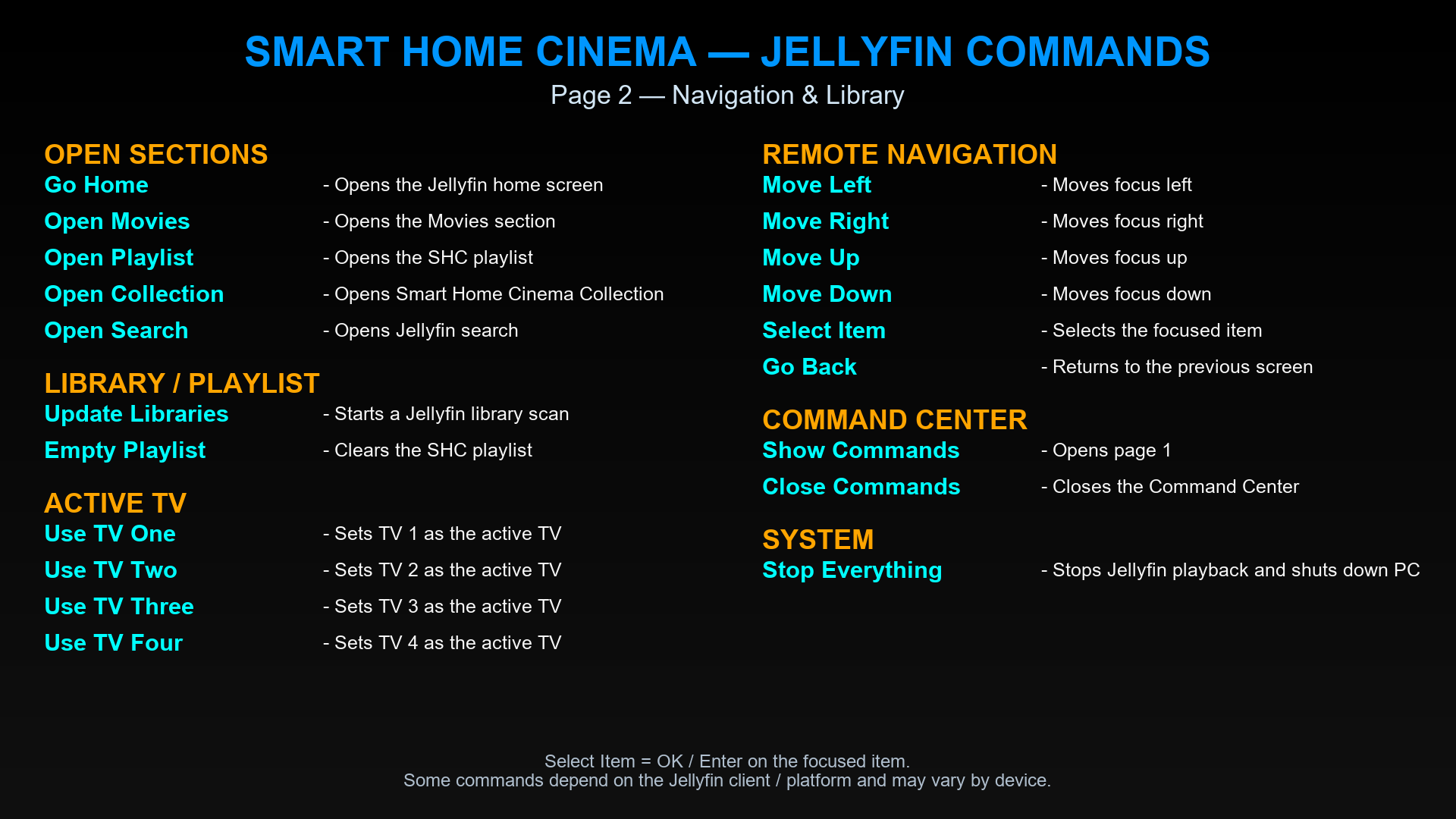
The Command Center gives you a quick on-screen reminder of the available voice commands.
Say Show Commands to open the first page, More Commands to continue and Close Commands when you are finished.
Smart Home Cinema automatically uses PNG pages on LG webOS and Samsung Tizen, and MP4 pages on Android TV / Google TV and Amazon Fire TV.
Roku and Other Jellyfin TV Clients
Roku has been tested and is not supported by the current Smart Home Cinema architecture because the Jellyfin Roku client does not expose the required remote-control capabilities through the Jellyfin Server API.
This is a Jellyfin Roku client limitation, not a Smart Home Cinema malfunction.
Other Jellyfin TV clients may work fully or partially, but they have not yet been validated. Use the 14-day free trial to test Smart Home Cinema with your own setup.
Ready to Set It Up?
Follow the Jellyfin Setup Guide to connect your server, configure your TVs, prepare your Movie List and choose the edition that matches your preferred control method.